
YouTube Studio
Google LLCVideo Players & Editors
4.337.14K Reviews
- Version
- Varies With Device
- Installs
- 100.00M
- Age Rating
- Teen
Screenshots
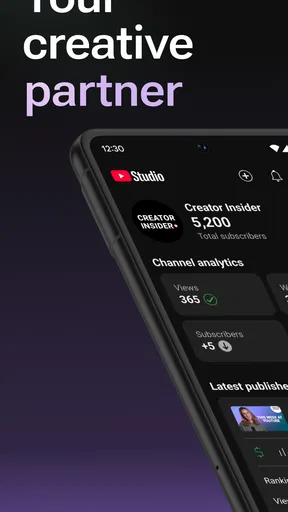
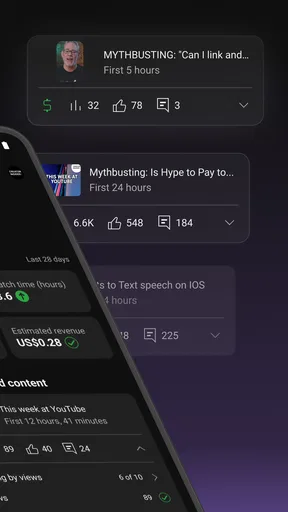
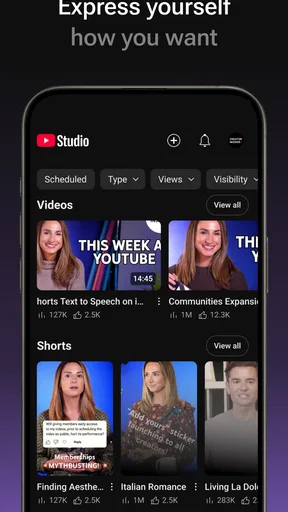
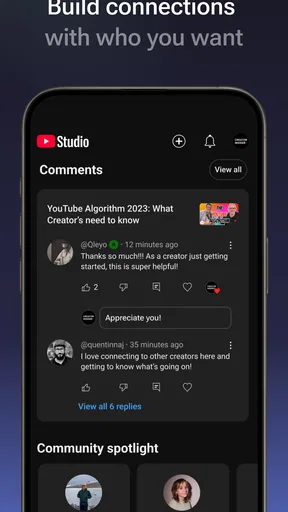
Our Review of YouTube Studio
 Analysis by Appyee
I use YouTube Studio as the practical control room for a channel when I’m away from a computer. It’s a free app from Google LLC in the video-player and editing category, but its job is not to help me edit a finished video: it is for checking activity and handling channel tasks after or around publishing. That distinction matters. If I want to trim footage or build a video from clips, I reach for an editor; if I want to check a comment, adjust a listing, or see how an upload is doing, this is the more relevant tool.
It is aimed at creators who already have a YouTube channel to manage, whether they post regularly or only now and then. The app has been available since June 26, 2014, and its audience is substantial: it has more than 100 million installs, with an average rating of 4.4 from around 2.2 million ratings and roughly 36,000 written reviews. Its Teen content rating is worth noting for younger users and families. Those figures suggest that it is a familiar companion for creators, but they do not guarantee that every workflow will feel smooth on every phone.
Managing Your Channel on the Go
Gone are the days when you needed to be tied to your desktop to manage your YouTube channel. With YouTube Studio, you can handle everything from your phone. I’ve personally found this incredibly handy when I’m out and about, and a sudden inspiration hits me. You can check your analytics, respond to comments, and even update your video details directly from the app. The user interface is pretty intuitive, making navigation a breeze.
A useful rhythm for everyday channel work
The app works best when I treat it as a short-visit dashboard rather than a place to do every creator task. I might open it while waiting for a train, check whether a new upload is attracting comments, answer the questions that need a quick reply, and then leave deeper planning for a larger screen. That separation keeps small channel chores from taking over the time I set aside to make videos.
A realistic routine is to check a recent upload once after publishing, then return later when there is enough audience activity to make the comments and analytics worth reviewing. I avoid refreshing statistics every few minutes: early movement can be interesting, but it is rarely a reason to change a whole content plan. On a phone, the useful question is usually simple—does anything need my attention now?—rather than whether every metric is moving exactly as I hoped.
For a creator who posts while travelling, a quick title correction or a timely response can be valuable because it does not require waiting until they get home. But I would still save substantial writing and detailed planning for a keyboard. Mobile access is a convenience, not a promise that every channel-management job is equally comfortable on a small screen.
Analytics at Your Fingertips
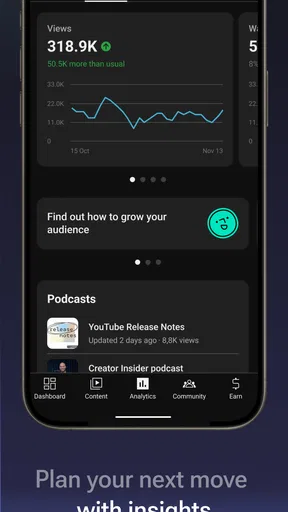
Understanding your audience is key, and YouTube Studio does a stellar job at providing detailed analytics. You can view real-time stats, which is perfect for tracking how your latest upload is performing. The app breaks down your data into digestible insights, so you don’t need to be a data scientist to make sense of it all. Trust me, once you start using these analytics, you’ll wonder how you ever managed without them.
The most useful habit is to look for patterns across several uploads instead of treating one busy or quiet day as a verdict. I would use the phone view to notice what deserves a closer look, then compare videos when I have time to think about the context: topic, timing, and the kind of audience each one was meant to reach. A number by itself is not an instruction. It can point me toward a question, but it cannot decide what I should make next.
That makes the analytics especially helpful for creators who want a lightweight check-in rather than a full reporting session. If I am checking during a spare moment, I can spot whether a video is drawing attention and decide whether to revisit it later. If I need to build a careful report, compare a range of content, or make a major strategy decision, a desktop view is usually easier to study without rushing.
Engage with Your Community
One of my favorite features is the ability to engage with your community effortlessly. The app makes it super easy to respond to comments, which is crucial for building a loyal audience. Plus, you can filter comments by top comments, those awaiting a response, or even those marked as spam. It’s like having a personal assistant who helps you keep your community engaged and happy.
Those filters are more than a convenience when comments arrive faster than I can read them one by one. I can focus first on comments waiting for a reply, then review other conversations when I have more time. I would still read a comment before acting on it: filtering helps sort the queue, but it does not replace judgment about tone, context, or whether a response is useful.
A small creator can use this to build a repeatable habit: answer genuine questions while they are fresh, leave more involved replies for a quieter moment, and check spam separately rather than letting it distract from real conversation. The trade-off is that thoughtful replies take attention. If a comment needs a nuanced answer, tapping one out hurriedly on a phone may be worse than waiting until I can respond properly.
Quick and Easy Video Management
Managing your video library has never been easier. Need to edit a title or description? You can do it in a jiffy with YouTube Studio. You can also change your video’s privacy settings or schedule a new upload. The app streamlines the entire process, so you can focus more on creating content rather than managing it.
For quick edits, I would keep changes narrow and deliberate. Correcting a typo or making a short description adjustment is a sensible phone task; rewriting several titles or descriptions in a row is easier to review on a larger display, where I can check wording and consistency. Before changing privacy or scheduling details, I would pause to confirm that I am working on the intended video. A quick interface is helpful, but channel actions still deserve a careful final check.
Settings and habits that prevent avoidable mistakes
The app’s value depends partly on how carefully I use the account and channel controls available to me. Before making a change, I check the selected video and read the current setting rather than relying on memory. That matters most when adjusting visibility or a scheduled upload: a mistaken tap can affect when viewers can see something, so speed should not replace a deliberate review.
I also find it useful to decide what belongs in a mobile session before opening the app. A short list—reply to unanswered comments, check the newest upload, correct a specific detail—keeps me from drifting through statistics without a purpose. This is not a special feature; it is a simple workflow that makes the app more useful and limits accidental edits.
Creators who share channel access should be particularly thoughtful about which account they are using and whether they are making a change on the right channel. I would make channel identity part of my opening check, especially if I move between personal and work accounts. That brief pause is less exciting than looking at analytics, but it can prevent confusion when handling comments or video details.
Where it fits beside other creator tools
Compared with a general video editor, this app is for channel operations, not assembling footage, adding elaborate effects, or polishing a finished cut. Compared with opening YouTube in a mobile browser or waiting to use a desktop, its advantage is having channel management organized around creator tasks such as comments, video details, and analytics. The browser or desktop remains a better choice when I need room to compare information, write at length, or work through a complex change.
It is also not a substitute for a planning system. I would keep scripts, calendars, and longer content plans wherever I already organize them, then use the app to handle the live channel details around publication. This division avoids expecting one tool to cover creation, editing, planning, and audience management equally well. For someone whose main goal is simply watching videos, the regular YouTube app is the more natural choice; this one makes sense when they are responsible for a channel.
Who will get the most from it—and who may not
I would recommend it to creators who need to stay responsive between filming and publishing, especially people who want to check comments or make a small correction without opening a laptop. It is also useful for occasional uploaders: you do not need to run a large channel to benefit from being able to review a video’s details and keep up with replies.
It is a weaker fit for someone who does not manage a YouTube channel, expects a full editing suite, or prefers to make every decision on a large screen. It may also feel unnecessary to creators who already handle all channel activity at a desktop and rarely need to respond on the move. The free price makes it easy to try, but the real question is whether mobile channel work fits your habits.
For a first-time creator, I would start with the practical tasks: identify the right channel, review a published video’s details, and learn where comments and analytics sit in the app. Then use it alongside the regular YouTube viewing experience rather than expecting it to teach every part of running a channel. The app is most valuable once there is something concrete to manage.
In Conclusion, if you’re serious about growing your YouTube channel, YouTube Studio is an essential tool. It provides the flexibility to manage your channel from anywhere, while offering robust features to keep your content strategy on point. Give it a try, and you might just find it to be the game-changer you’ve been looking for. Happy creating!
My more measured recommendation is to think of it as a dependable mobile companion, not a replacement for every desktop tool or for the work of making good videos. When I use it for quick checks, thoughtful replies, and straightforward video changes, it earns its place on my phone. When a task calls for careful comparison, long-form writing, or actual video editing, I switch to a tool and screen better suited to that job.
Privacy and Permissions
See what permissions an app requests and how it handles your data.
- Photos/Media/Files
- read the contents of your USB storage, modify or delete the contents of your USB storage
- Storage
- read the contents of your USB storage, modify or delete the contents of your USB storage
- Camera
- take pictures and videos
- Microphone
- record audio
- Wi-Fi connection information
- view Wi-Fi connections
- Other
- view network connections, measure app storage space, full network access, run at startup, use accounts on the device, prevent device from sleeping, read Google service configuration
Verdict
Strengths of YouTube Studio
- User-friendly interface for easy navigation.
- Detailed analytics for video performance.
- Real-time subscriber count updates.
- Customizable dashboard for quick insights.
- Efficient comment management features.
Limitations of YouTube Studio
- Limited features on mobile compared to desktop.
- Requires internet for full functionality.
- Occasional sync issues with YouTube account.
- Notifications can be overwhelming at times.
- Some analytics can be delayed.
Other Releases by Google LLC
View All
Google Calendar
Productivity4.6

Google Messages
Communication4.6

Tools4.0

Google TV
Video Players & Editors3.9
Similar Picks in This Category
View AllGoogle TV
Google LLC3.9

iTunes
Apple4.7

YouTube
Google LLC3.8

MX Player
Amazon Mobile LLC4.2

CapCut - Video Editor
Bytedance Pte. Ltd.3.5

PLAYit-All in One Video Player
PLAYIT TECHNOLOGY PTE. LTD.4.5
You May Also Like
View All


Frequently Asked Questions
What is YouTube Studio used for?
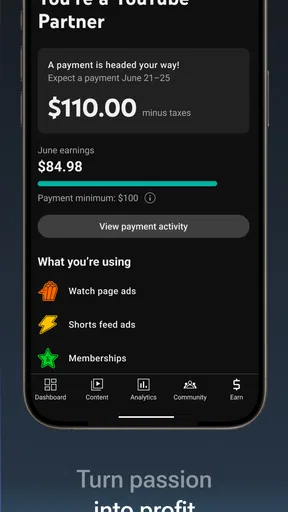
YouTube Studio is an essential tool for content creators on YouTube. It allows users to manage their channels, including uploading videos, checking analytics, responding to comments, and customizing channel settings. With YouTube Studio, creators can track their performance and optimize their content to better engage with their audience.
Is YouTube Studio free to use?
Yes, YouTube Studio is completely free for all YouTube creators. Users can download and access the app without any charges. However, to use YouTube Studio, you need to have a YouTube account. All features, including analytics and comment management, are available without additional costs.
Can YouTube Studio be accessed on mobile devices?
Absolutely! YouTube Studio is available as an app for both Android and iOS devices. The mobile version provides many of the same features as the desktop version, allowing creators to manage their channels on the go. This includes checking video analytics, replying to comments, and uploading new content.
What analytics does YouTube Studio provide?
YouTube Studio offers a comprehensive suite of analytics to help creators understand their channel's performance. This includes metrics like watch time, subscriber growth, video views, and audience demographics. These insights are crucial for optimizing content strategy and improving engagement with the target audience.
How secure is YouTube Studio for managing my content?
YouTube Studio is designed with security in mind, ensuring that your content and personal information are protected. Google’s robust security infrastructure safeguards your data. It’s important to use strong passwords and enable two-factor authentication for your account to enhance security further.
